Wistia
Add video to your Zendesk tickets
About this app
Wistia: Your friendly neighborhood video platform 🏡.
The Wistia app for Zendesk makes it easy add videos from your Wistia account right into Zendesk tickets. Build stronger, more human relationships with your customers, and understand the impact of video on your support.
With the Wistia Zendesk app, you can:
Navigate your Wistia library and find the right video to share.
Add a video thumbnail link to a Zendesk ticket.
- Track the viewer's email address in your Wistia stats, and learn how each person interacts with your content.
Tag Zendesk tickets automatically when a video is shared, to see how video impacts your team's productivity and your customers' happiness.
Bonus: Learn how to make great videos for customer support with this helpful DIY guide in the Wistia Library:

App 詳情
如何安裝
Ready to add video to your Zendesk tickets? Awesome! Here's how to set up the Wistia Zendesk integration:
Getting Started
- First things first, get yourself a free Wistia account. Or, high five yourself for having one already 👏.
- Go to your Wistia account settings and create an access token with all permissions. Give it a descriptive name for future reference, like "Zendesk integration token."
Copy that token into the Wistia app's installation settings in Zendesk, where it will be stored securely.
- If you want your team to be able to upload new videos, enable the "Allow upload" option.
- If uploading is enabled, you'll need to pick a default project to upload videos into. Head to your Wistia account and find the project you want to use, then copy its ID (the part of the URL after
/projects/) and paste it into the "Default Wistia project ID for uploads" setting. If you want to limit which projects from your Wistia account appear in the Wistia Zendesk app, fill out the optional "Projects to show" field.
Click the "Install" button to finish setting up the integration.
That's it! After following those steps, you can access the Wistia app from its button in the Zendesk ticket editor toolbar:
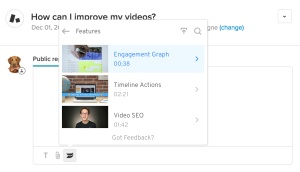
To learn more about using Wistia in Zendesk, see the Wistia for Zendesk help page.
Questions? Problems? Feedback? support@wistia.com is here for you.
留下評論
與其他 Zendesk 社群分享您的體驗